
Adding online booking to your website means embedding or linking a scheduling tool that lets customers book appointments directly, without calling or emailing you. The setup is faster than most business owners expect. Embedding a booking widget takes under five minutes on most platforms, and no developer is required.
There are three core methods to integrate a booking system:
- Embed a widget or iframe directly on your site so visitors book without leaving your page
- Add a “Book Now” button that links to an external hosted booking page
- Use an API to build a fully custom booking experience within your site’s code
Popular platforms used by US small businesses include Square Appointments, Google Calendar booking links, Setmore, and Zoho Bookings. Each offers freemium tiers, mobile-responsive booking pages, and automated reminders. Businesses that add online booking report a 37% average revenue increase, and 94% of consumers prefer providers that offer it.
How to add online booking to your website: step-by-step
You don’t need a developer. You need admin access to your site and an account with a booking platform. That’s the full technical requirement.
-
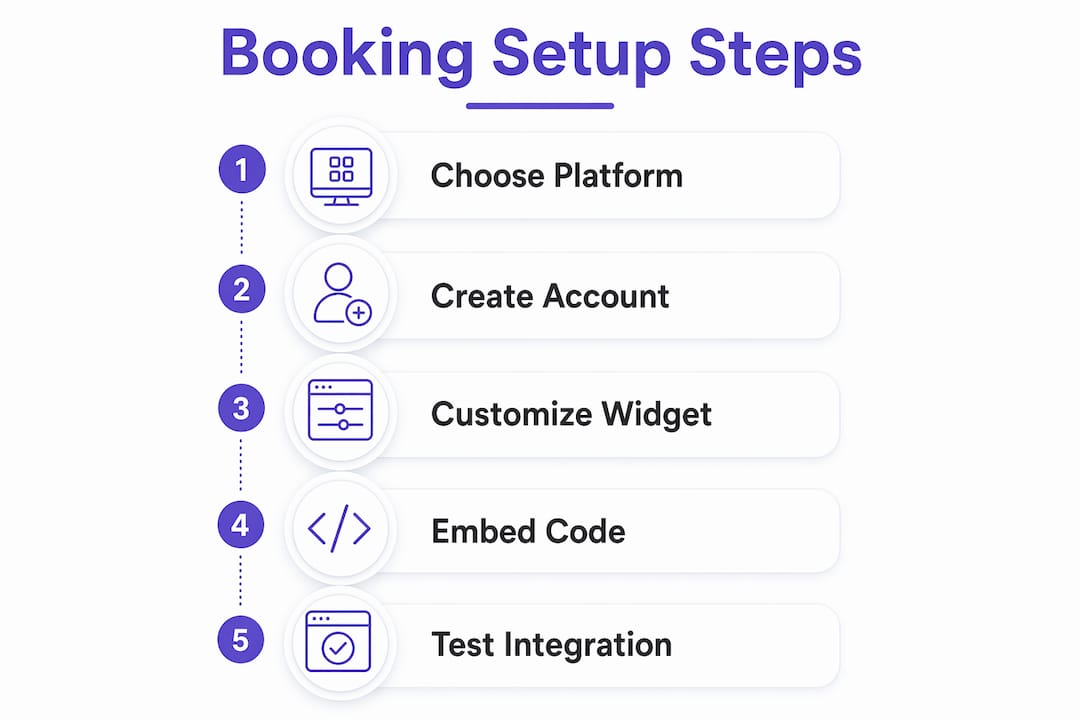
Choose your booking platform. Match the tool to your business type. Square Appointments works well for service businesses that also take payments. Setmore fits solo operators who want a custom booking page fast. Zoho Bookings suits businesses already inside the Zoho ecosystem. Google Calendar booking links are the simplest free option.
-
Create your account and configure your services. Set your availability hours, list your services with durations and prices, and connect your calendar. Most platforms walk you through this in a setup wizard.
-
Get your embed code or booking page URL. Inside your platform’s dashboard, look for a “Share,” “Embed,” or “Widgets” section. Copy the code snippet or the direct booking URL.
-
Add the booking feature to your website. On WordPress, add a Custom HTML block and paste the embed code. On Wix, go to Add > Embed > Embed Code and paste it in. On Squarespace, add a Code Block and paste. On Shopify, open the page HTML view and paste directly. Most website builders require nothing beyond this copy-paste step.
-
Test on both desktop and mobile. Open the booking flow on your phone before you publish. Check that the calendar loads, the form submits, and the confirmation email arrives.
-
Set up notifications and payment integration. Configure automated confirmation emails and reminder texts for your clients. If you take deposits or full payment at booking, connect your payment gateway (Stripe and Square are the most common choices in the US).
-
Keep your branding consistent. Use your brand colors, logo, and a custom booking URL where the platform allows it. A white-labeled booking URL builds trust because clients stay in a familiar visual environment throughout the process.
What are the main methods for adding a booking feature?
Each integration method has a different tradeoff between ease of setup and control over the experience. Here’s how they compare.
-
Embedded widget or iframe. You paste a short code snippet into your site, and the booking calendar appears directly on your page. Visitors never leave your site to complete a booking. The setup takes under five minutes on any major platform. The main limitation is that your booking calendar depends on the third-party platform’s uptime.
-
“Book Now” button linking to an external page. You add a button or text link that sends visitors to a hosted booking page on the platform’s domain. This is the easiest setup of all three methods and requires zero code. The tradeoff is a visible break in branding when the URL changes.
-
WordPress and CMS plugins. Tools like Bookly integrate directly into WordPress, giving you an admin panel to manage bookings without touching code. This approach keeps everything inside your existing CMS and is fully indexed by search engines. It requires a compatible CMS and occasional plugin updates.
-
API integration. An API lets a developer pull booking data directly into your site’s own interface. The booking form looks and feels completely native. This is the right choice for businesses with complex scheduling logic or unique requirements. It requires developer time and ongoing maintenance.
-
Custom-coded booking system. Building from scratch gives you total control but is rarely worth the investment for a small business. Third-party platforms already handle timezone sync, reminders, and payment processing reliably. The cost and complexity almost always outweigh the benefits for service businesses under a certain scale.
Pro Tip: If you’re on WordPress, start with a plugin before trying an iframe embed. Plugins give you a native admin experience and are easier to update when your service list changes.

Which booking platforms work best for US small businesses?
The right platform depends on what you already use and what your clients expect. These four are the most widely used by US service providers in 2026.
-
Square Appointments. Square’s scheduling tool connects directly to its point-of-sale system, so payments, inventory, and appointments live in one place. Clients can book 24/7 online, and appointments are confirmed instantly with automated reminders. The free tier covers solo operators; paid plans add staff management and more customization. It’s a strong fit for salons, fitness studios, and any business already using Square for payments.
-
Google Calendar booking links. Google’s built-in appointment scheduling is free for anyone with a Google Workspace account. You share a link, clients pick a time, and it drops straight into both calendars. There’s no custom branding and limited customization, but for a solo consultant or freelancer who wants zero friction, it’s hard to beat.
-
Setmore. Setmore gives you a fully customizable booking page with a custom URL, service menu, and real-time availability. You can embed it on your site, share the link directly, or connect it to Facebook and Instagram. The free plan supports up to four users, and paid plans unlock payment processing and two-way calendar sync. It’s well-suited for small teams and solo service providers who want a polished client-facing page without a big monthly bill.
-
Zoho Bookings. Part of the Zoho suite, this platform integrates tightly with Zoho CRM, Zoho Meetings, and other Zoho tools. If your business already runs on Zoho, adding booking is a natural extension. It supports multiple staff members, service types, and time zones, which makes it a good fit for growing service businesses with more complex scheduling needs.
All four platforms offer mobile-responsive booking pages, automated email and SMS reminders, and payment gateway integration. Pricing models range from free tiers to subscription plans, so you can start without upfront cost and upgrade as your volume grows. For a deeper look at how automated follow-up connects to booking and client acquisition, that’s worth reading alongside your platform research.

What do you need to set up before adding online booking?
Getting your site ready before you paste any code saves you from fixing problems after you go live. Work through this checklist first.
-
Confirm your website platform. WordPress, Wix, Squarespace, Shopify, and plain HTML sites all support booking embeds. Confirm you have admin or editor access before you start. Without it, you can’t add code blocks or install plugins.
-
Check mobile responsiveness. If your site doesn’t already display well on phones, a booking widget won’t fix that. Mobile-responsive design is a prerequisite, not an add-on. Test your current site on a phone before you add anything.
-
Verify your site uses HTTPS. Any page that collects personal information, including a name and email for a booking, must run on HTTPS. Most hosting providers enable SSL by default now, but confirm it in your browser before you go live with a booking form.
-
Plan where the booking feature will appear. The highest-converting placement is usually above the fold on your homepage or on a dedicated “Book Now” page linked from your main navigation. Burying it in the footer costs you bookings. If you want to understand why visitors don’t convert, placement is one of the most common culprits.
-
Prepare your service content. Write clear service names, descriptions, durations, and prices before you configure your platform. Vague service listings reduce bookings because clients don’t know what they’re selecting.
-
Review your cancellation and privacy policies. You’re collecting names, emails, and sometimes payment details. Your booking page should link to a privacy policy that explains how you store and use that data. This is a legal requirement under US state privacy laws in many cases, and it builds client trust.
Expert tips to get more bookings from your website
Getting the booking feature live is step one. Getting it to actually convert visitors into paying clients takes a few more deliberate moves.
-
Use automatic language recognition. If you serve clients who speak languages other than English, platforms that detect browser language and adjust the booking form automatically will reduce drop-off. This is a setting inside most major booking tools, not a custom build.
-
Make the widget fully mobile responsive. Mobile users abandon booking flows that require pinching, zooming, or horizontal scrolling. Test your booking widget on at least two different phone screen sizes before you publish. Mobile responsiveness in the booking tool itself is separate from your site’s overall mobile design.
-
Match your branding throughout the booking flow. Use your brand colors, logo, and a custom booking URL wherever the platform allows. Widget styling via embed code attributes lets you adjust colors without writing custom CSS. A booking page that looks like a different website breaks client trust at exactly the wrong moment.
-
Set up reminders to cut no-shows. Automated confirmation emails and SMS reminders 24 hours before an appointment reduce no-shows without any manual effort on your part. Most platforms include this in their free or entry-level paid tier.
-
Communicate payment and cancellation policies clearly. Display your deposit requirement, cancellation window, and refund policy on the booking page itself, not just in a confirmation email. Clients who see the policy before they book are far less likely to dispute charges later.
-
Use deep links for marketing campaigns. When you run a promotion or send an email campaign, you can pass parameters through your booking URL to pre-fill client information or track which campaign drove the booking. Deep linking for booking gives you cleaner analytics and a faster experience for clients who click from an email.
-
Audit your booking flow monthly. Click through the entire booking process yourself every few weeks. Platforms update their interfaces, and a widget that worked perfectly in january may have a broken step by march. Catching it yourself is better than hearing about it from a client.
-
Protect client data. Use a booking platform that is GDPR-aware and compliant with applicable US state privacy regulations. Collect only the information you actually need. Don’t store credit card numbers outside of a PCI-compliant payment processor like Stripe or Square.
Ready to turn your website into a booking machine?
Your website should be doing more than sitting there. If visitors are landing on your pages and leaving without booking, the fix is usually a combination of the right booking integration and a site built to convert. Cosmicdigitalstudios builds custom websites that convert visitors into booked calls and paying clients, with booking flows designed to match your brand from the first click to the confirmation page. If your current site isn’t pulling its weight, a website redesign built around conversion is often the fastest path to more revenue.
Key Takeaways
Adding a booking widget to your website is a very quick process on any major platform, and businesses that do it report a 37% average revenue increase.
| Point | Details |
|---|---|
| Setup time is minimal | Embedding a booking widget takes under five minutes using copy-paste on WordPress, Wix, Squarespace, or Shopify. |
| Three core methods exist | Embed a widget, add a “Book Now” button to an external page, or use an API for custom integration. |
| Platform choice matters | Square Appointments, Setmore, Google Calendar, and Zoho Bookings each fit different business types and budgets. |
| Mobile and HTTPS are prerequisites | Your site must be mobile responsive and run on HTTPS before you add any booking form that collects client data. |
| Branding and reminders drive conversions | A white-labeled booking URL and automated reminders reduce drop-off and no-shows without extra manual work. |