
To record Google Ads conversions right now, create a conversion action in Google Ads, install a sitewide Google tag (or configure it in GTM), deploy an event trigger (URL match, event snippet, or GA4 import), and validate with Tag Assistant. That’s the complete conversion tracking setup in four moves.
Quick-check before you start:
- Google Ads account with Admin access
- Google tag (gtag.js) installed sitewide, or a GTM container live on your site
- GA4 property linked to your Google Ads account
- Tag Assistant (or GTM Preview) ready to verify
Three actions you can complete in 30 minutes or less:
- Create a conversion action in Google Ads under Goals → Conversions → + New conversion action → Website
- Confirm your sitewide Google tag is live on every page (or add a gtag config tag in GTM)
- Deploy a URL-based conversion trigger on your thank-you page — the fastest path for most small businesses
For a simple lead-gen site or local service business, a URL-based trigger via the Google tag gets you recording conversions faster than any other method. The official three-step flow is: connect your website data source, create conversion actions, then implement and verify your tags. The sections below follow that exact sequence, from permissions through testing.
Key Takeaways
A reliable conversion tracking setup requires verified permissions, a sitewide Google tag, event-based triggers, and Enhanced Conversions enabled — all confirmed with Tag Assistant before any campaign goes live.
| Point | Details |
|---|---|
| Permissions first | Confirm Google Ads Admin access, GA4 Edit access, and GTM Publish access before touching any tag. |
| Sitewide tag is non-negotiable | Install the Google tag on every page and add a Conversion Linker in GTM triggered on All Pages. |
| Event-based beats URL-based | Use GTM event triggers or dataLayer pushes for accurate counts; URL-based inflates results on reachable confirmation pages. |
| Enable Enhanced Conversions | Map email or phone fields in GTM to recover conversions lost to cookie restrictions and ad blockers. |
| Cosmicdigitalstudios builds and audits | Cosmicdigitalstudios delivers complete GTM setups, Enhanced Conversions deployment, and verified tracking specs for coaches, consultants, and service businesses. |
Table of Contents
- What permissions and account links do you need before setup?
- How do you pick the right conversion tracking method?
- How to install your sitewide Google tag or configure it in GTM
- How to create conversion actions in Google Ads
- Step 3 — implementing your conversion trigger
- Why Enhanced Conversions matter in a privacy-first environment
- When does server-side GTM make sense for your business?
- How to capture dynamic conversion values and transaction IDs
- How to test, validate, and debug your conversion tracking
- Common problems and how to fix them
- When should you hire an expert for conversion tracking?
- The honest case for getting conversion tracking right the first time
- Cosmicdigitalstudios handles your conversion tracking so your ad spend isn’t flying blind
- Sources
What permissions and account links do you need before setup?
Skipping this step causes more failed setups than any technical error. Confirm every item below before you touch a tag or create a conversion action.
Required account access:
- Google Ads: Admin role on the account where you’re creating conversion actions
- Google Analytics 4: Edit access on the GA4 property you plan to link or import events from
- Google Tag Manager: Publish access on the container you’ll deploy tags through
- Website: Ability to edit the
<head>of your site (or access to the CMS/developer who can)
Account links to confirm:
- Google Ads is linked to the correct GA4 property (check under Tools → Linked accounts in Google Ads)
- The right GA4 data stream is connected to your Google Ads account
- If you’re planning server-side tagging, confirm you have a server container provisioned in GTM and Admin access to both the web and server containers
Site prerequisites:
- A sitewide Google tag (gtag.js) already fires on every page, OR a GTM container snippet is in the
<head>and<body>of every page - Auto-tagging is enabled in Google Ads (under Account settings) so GCLIDs append to your URLs
- If conversions cross domains (e.g., a booking tool on a subdomain), cross-domain linker configuration is required
Quick permission checklist to share with your developer or agency:
- [ ] Google Ads Admin access granted
- [ ] GA4 Edit access granted
- [ ] GTM Publish access granted
- [ ] Site header editable or CMS plugin available
- [ ] Auto-tagging confirmed ON in Google Ads
Pro Tip: When handing access to an outside agency or developer, use Google Ads’ Manager Account linking or grant temporary access rather than sharing login credentials. Document which account IDs and container IDs are in scope before work begins — this makes audits and handoffs far cleaner.
How do you pick the right conversion tracking method?
Google Ads defines four primary conversion categories: website actions, app installs and purchases, phone calls, and offline conversions. For most marketers and small business owners, website conversions are the priority. Within that category, five implementation paths exist, and choosing the wrong one wastes hours.
Use-case pairs to guide your decision:
- Small e-commerce store with purchase values and transaction IDs: use GTM with a dataLayer push and event snippet for dynamic values
- Local consultant or coach with a form thank-you page: URL-based match is fastest; upgrade to GA4 key-event import if you want estimated lead values in bidding
- B2B lead-gen site with multi-page forms: skip URL-based entirely — a form_submission event via GTM or dataLayer gives you accurate counts without inflated duplicates from page reloads
- High-traffic service business concerned about cookie loss: server-side GTM plus Enhanced Conversions is the most resilient combination
Skip URL-based tracking whenever your form spans multiple pages, when you need transaction IDs for deduplication, or when the confirmation URL is not unique per conversion. In those cases, an event-based trigger is the only reliable path.
How to install your sitewide Google tag or configure it in GTM
Google recommends a sitewide Google tag plus event snippets for the most accurate cross-browser measurement. A tag that only fires on the thank-you page misses the Conversion Linker behavior that preserves GCLID data across pages.
Installing the Google tag directly on your site
- In Google Ads, go to Tools → Google tag (or find your tag ID under Goals → Conversions → Settings)
- Copy your tag ID (format:
AW-XXXXXXXXX) - Paste the full gtag.js snippet into the
<head>of every page on your site, immediately after the opening<head>tag - Confirm the snippet includes both the
gtag('js', new Date())line andgtag('config', 'AW-XXXXXXXXX') - Enable auto-tagging in Google Ads under Account settings → Auto-tagging → ON
Configuring the Google tag inside GTM
- In GTM, create a new tag: Google Ads → Google Ads Conversion Tracking (or use the Google tag type for a config tag)
- Add your Conversion ID (
AW-XXXXXXXXX) as the tag configuration - Set the trigger to All Pages
- Create a second tag: Conversion Linker, also triggered on All Pages — this tag stores GCLID data in first-party cookies so attribution survives across page navigations
- Publish the GTM workspace
Verifying installation
- Open Tag Assistant (tagassistant.google.com) and enter your site URL — confirm the Google tag fires on every page
- Use GTM Preview mode to walk through your site and verify both the Google tag config and Conversion Linker appear in the tag summary
- Check GA4 Realtime or DebugView to confirm pageview events are registering
Pro Tip: Never run gtag.js hardcoded in your site header AND a gtag config tag in GTM at the same time without careful deduplication. Duplicate Google tags cause inflated session counts and can interfere with conversion attribution. Pick one method and remove the other.
Cross-domain check: If your booking page, checkout, or form lives on a different domain or subdomain, configure cross-domain measurement in GA4 and add the linker parameter to your GTM Conversion Linker settings. Without this, GCLIDs drop at the domain boundary and conversions go unattributed.
How to create conversion actions in Google Ads
With your tag live, the next step is creating the conversion action itself. The settings you choose here directly affect what feeds your automated bidding, so get them right before you launch campaigns.
- In Google Ads, navigate to Goals → Conversions → Summary
- Click + New conversion action
- Select Website as the conversion source
- Enter your website URL and click Scan (Google will suggest conversion actions based on your site)
- Choose Add manually if you want full control over settings
- Set the conversion name (be specific: “Form Submit — Contact Page” beats “Lead”)
- Choose the category: Purchase, Submit lead form, Page view, Sign-up, or other
- Set the value: static (same amount every time) or dynamic (pulled from the page at conversion time)
- Set Count: Every for purchases; One for leads (counts only the first conversion per click)
- Set the conversion window: 30 days for leads, 90 days for high-consideration purchases
- Choose an attribution model: Data-driven is the default and recommended for most accounts with sufficient volume
- Under Include in Conversions, confirm whether this action feeds automated bidding — only include actions that represent real business value
Best-practice defaults by use case:
- E-commerce purchase: Category = Purchase, Value = Dynamic, Count = Every, Window = 90 days
- Lead gen (form submit): Category = Submit lead form, Value = Static (estimated lead value), Count = One, Window = 30 days
- Phone call from ad: Category = Phone call lead, Count = One, minimum call duration set to 60 seconds
Pro Tip: For B2B and consulting businesses, assign an estimated dollar value to each lead conversion — even a rough figure like $150 per qualified lead. Automated bidding uses this signal to prioritize clicks more likely to produce higher-value leads rather than just raw volume. This is one of the fastest ways to improve lead quality from Google Ads without changing your ads or landing pages. For more on why conversion values matter, see what conversion rate means for your business.
Step 3 — implementing your conversion trigger
Once the conversion action exists and your tag is live, you need to tell Google Ads when to count a conversion. The right trigger method depends on what you chose in the setup method section above.
URL-based (match rule)
- Inside the conversion action settings, choose URL contains or URL equals as the match type
- Enter the unique URL of your thank-you or confirmation page (e.g.,
/thank-youor/order-confirmation) - Save and test by visiting that URL while Tag Assistant is running — the conversion should fire immediately
Pitfalls: URL-based tracking counts every visit to that page, including direct visits, refreshes, and bot traffic. Use it only when the confirmation URL is genuinely unique and only reachable after a real conversion.
GTM event trigger (recommended for most businesses)
- In GTM, create a new Google Ads Conversion Tracking tag
- Enter your Conversion ID and Conversion Label (both found in the Google Ads conversion action settings under “Tag setup”)
- Create a trigger: Custom Event with the event name matching what your site fires (e.g.,
form_submit,purchase,generate_lead) - If your site uses a dataLayer push, set the trigger to fire on the
dataLayerevent name - Publish the container and verify in GTM Preview that the tag fires on the correct interaction
For practical GTM tag and trigger patterns, Analytics Mania’s GTM walkthrough is a reliable reference for common configurations.
Event snippet (inline code)
- Copy the event snippet from the Google Ads conversion action settings (under “Tag setup → Use Google tag Manager is off”)
- Paste it on the confirmation page, inside a
<script>block that fires after the page loads - For dynamic values, replace the static
valueandtransaction_idplaceholders with variables pulled from your page
GA4 key-event import
- In GA4, mark the relevant event as a Key event (Admin → Events → toggle “Mark as key event”)
- In Google Ads, go to Goals → Conversions → + New conversion action → Import → Google Analytics 4
- Select the GA4 property and the key event you want to import
- Confirm Edit access on the linked GA4 property is in place — without it, the import option won’t appear
This method works well for lead-generation websites already firing events through GA4, since it centralizes event management and reduces the risk of duplicate tags.
Pitfalls by method:
- URL-based: Duplicate counts from refreshes; no transaction ID support
- GTM event trigger: Missing Conversion Linker tag causes attribution gaps; wrong event name means the tag never fires
- Event snippet: Fires on page load only — misses button clicks unless wrapped in a click handler
- GA4 import: Requires the GA4 property to be correctly linked; key events can take 24–48 hours to appear as import options
Pro Tip: Use a consistent naming convention across GA4 and Google Ads from day one. If GA4 fires generate_lead, name your Google Ads conversion action “generate_lead — [page name]” rather than something generic like “Lead.” When you’re managing five or more conversion actions across multiple campaigns, consistent naming prevents misattribution and makes audits much faster.
Why Enhanced Conversions matter in a privacy-first environment
Enable Enhanced Conversions to improve attribution accuracy using hashed first-party data — specifically, email addresses or phone numbers collected at the point of conversion — when cookies are restricted or blocked. As third-party cookies become less reliable, this is one of the most practical steps you can take to maintain accurate reporting.
Enhanced Conversions use SHA-256 hashing to send customer data in a privacy-safe format. Google matches that hashed data against signed-in Google accounts to attribute conversions that cookies would have missed.
Three ways to implement Enhanced Conversions
-
Automatic collection (fastest): In Google Ads, go to Goals → Conversions → Settings → Enhanced Conversions for web → turn on automatic detection. Google’s tag scans your confirmation page for email or phone fields and collects them automatically. No code changes needed.
-
Manual via GTM (recommended for control): In GTM, configure your Google Ads Conversion Tracking tag to include Enhanced Conversions. Map CSS selectors or dataLayer variables to the
emailandphone_numberfields. GTM hashes the data before sending. -
Code configuration (most control): Pass pre-hashed SHA-256 values directly in your event snippet using the
enhanced_conversionsobject. This is the right choice when you’re handling sensitive data and want to hash server-side before it ever reaches the browser.
Required fields and privacy considerations:
- At minimum, provide either
emailorphone_number— both is better for match rates - Data must be collected with user consent; align with your privacy policy and consent management platform
- If your site serves users in the EEA, UK, or Switzerland, implement Google Consent Mode alongside Enhanced Conversions
- Hashing happens client-side (GTM or gtag) or server-side — never send unhashed PII in plain text
Pro Tip: Start with automatic collection to confirm Enhanced Conversions are working, then switch to manual GTM configuration once you’ve verified the fields are being detected correctly. Automatic is fast but can miss fields on heavily customized confirmation pages — manual gives you precision without requiring a developer.
When does server-side GTM make sense for your business?
Server-side tagging moves tag execution from the visitor’s browser to a server you control. The result: fewer client-side scripts, better page performance, and conversion signals that survive ad blockers and browser restrictions. It’s not the right starting point for every business, but for high-volume operations it’s worth the setup investment.

Server-side GTM requires a web container, a server container, and a GA4 client — plus Admin access to both your Google Ads account and GTM. The server container needs hosting (Google Cloud Run is the standard option).
Clear benefits of server-side tracking:
- Improved conversion match rates when browser-based cookies are blocked
- Lower page load cost — fewer third-party scripts running in the visitor’s browser
- Central control over what data leaves your server and when
- Easier deduplication when combining client-side pixel data with server API calls
- Cleaner separation between marketing tags and site performance
Prerequisites checklist:
- [ ] Admin access to Google Ads and GTM
- [ ] Web container live and publishing correctly
- [ ] Server container provisioned and hosted (Google Cloud Run or equivalent)
- [ ] GA4 client configured in the server container
- [ ] Conversion Linker tag deployed on all pages in the web container
A dual setup — client-side pixel for real-time events plus a server-side layer for attribution and deduplication — gives you the best of both. The client pixel fires immediately; the server layer secures and supplements that data for improved match rates.
Pro Tip: Reserve server-side GTM for e-commerce businesses processing significant transaction volume or for any business where first-party data matching is a strategic priority. For a local service business or solo consultant, client-side GTM with Enhanced Conversions delivers most of the same privacy resilience at a fraction of the setup complexity. Keep a client-side tag as a backup during any server-side migration — it’s your safety net while you validate the server container.
How to capture dynamic conversion values and transaction IDs
Static conversion values tell Google Ads every lead is worth the same amount. Dynamic values tell it the actual purchase amount, which makes automated bidding far more precise. Google Ads supports dynamic value capture via CSS selectors or dataLayer variables, with the requirement that the value must be present on the page where the conversion tag fires.
Three methods for passing dynamic values
-
dataLayer push (preferred): On your confirmation page, push an event to the dataLayer before the GTM tag fires:
dataLayer.push({
  'event': 'purchase',
  'value': 99.00,
  'currency': 'USD',
  'transaction_id': 'TXN-12345'
});
In GTM, create dataLayer variables for
value,currency, andtransaction_id, then map them to the corresponding fields in your Google Ads Conversion Tracking tag. -
CSS selector extraction: In GTM, create a DOM Element variable that targets the element on your confirmation page containing the order total (e.g.,
.order-total span). Map this variable to thevaluefield in your conversion tag. Use this only when you cannot modify the page code. -
Server-side variable lookup: For database-driven confirmation pages, pass values through the server container using a lookup table or a custom variable that reads from the request payload. This is the most reliable method for complex e-commerce flows.
Pro Tip: Always prefer dataLayer pushes over CSS selectors. A CSS selector breaks the moment a developer renames a class or restructures the DOM. A dataLayer push is a contract between your development team and your marketing stack — it stays stable across design changes. Document the variable names and expected data types in a shared spec so both sides know what to expect.
Verifying dynamic values:
- In GTM Preview, confirm the dataLayer variables show the correct values before the conversion tag fires
- In Tag Assistant, check the conversion event payload and confirm
value,currency, andtransaction_idare present - In Google Ads, use the Test conversions feature (under the conversion action settings) to send a test hit and verify the value appears correctly
- Check transaction ID deduplication: if the same
transaction_idfires twice, Google Ads counts it only once — confirm your IDs are unique per transaction
Currency formatting note: always pass value as a numeric type (not a string), and pass currency as a three-letter ISO code (USD, not $). Inconsistent types cause silent failures where the tag fires but the value records as zero.
How to test, validate, and debug your conversion tracking
Verify in this order: GTM Preview or Tag Assistant → GA4 DebugView or Realtime → Google Ads conversion action status. Expect the Google Ads status to take up to 48 hours to update after a real conversion fires.
Step-by-step verification flow
- Open GTM Preview (or Tag Assistant) and connect it to your site
- Complete the conversion action yourself — submit the form, reach the thank-you page, or trigger the event
- In GTM Preview, confirm the conversion tag appears in the Tags Fired list with the correct Conversion ID and Label
- Open GA4 DebugView (Admin → DebugView) and confirm the corresponding event appears with the correct parameters
- In Google Ads, go to Goals → Conversions → Summary and check the Status column — it should read “Recording” within 48 hours of a real conversion
- For dynamic values, open the conversion action and check the Conversion value column to confirm the correct amount is recording
What a passing result looks like:
- GTM Preview: conversion tag in “Tags Fired,” not “Tags Not Fired”
- Tag Assistant: Google Ads conversion event visible with correct AW- ID
- GA4 DebugView: event name matches your trigger, parameters populated
- Google Ads: status “Recording,” value matches expected amount
Quick checks when something looks wrong:
- Conversion tag in “Tags Not Fired”: check the trigger condition — event name mismatch or trigger type wrong
- Tag fires but no conversion in Google Ads: confirm auto-tagging is ON and the Conversion Linker tag fires on All Pages
- Duplicate conversions: check for both a hardcoded gtag snippet and a GTM gtag config tag running simultaneously
- Wrong value (zero or null): confirm dataLayer push fires before the GTM tag, and that
valueis a number, not a string - Status stuck on “Unverified”: a real click from a Google Ads ad must trigger the conversion — test clicks from organic traffic won’t update the status
Troubleshooting checklist:
- [ ] Auto-tagging is ON in Google Ads account settings
- [ ] Conversion Linker tag fires on All Pages in GTM
- [ ] Conversion ID and Label match exactly between GTM tag and Google Ads conversion action
- [ ] No duplicate Google tag (gtag.js hardcoded + GTM config tag)
- [ ] Thank-you page URL is unique and only reachable post-conversion (for URL-based)
- [ ] dataLayer push fires before GTM container processes the event
The 48-hour window is normal for the Google Ads status column. If status hasn’t updated after 72 hours and you’ve confirmed the tag fires correctly in Tag Assistant, check that the conversion was triggered by an actual ad click with a GCLID in the URL.
Common problems and how to fix them
Even a correctly configured conversion tracking setup can run into issues post-launch. Here are the failure modes marketers actually encounter, with direct fix steps.
No conversions recorded
- Confirm auto-tagging is ON in Google Ads (Account settings → Auto-tagging)
- Check that the Conversion Linker tag fires on All Pages in GTM
- Verify the conversion was triggered by a click from a Google Ads ad — organic or direct visits don’t count
- In Tag Assistant, confirm the Google Ads conversion event fires on the conversion page
- Check the conversion window — if the click happened more than 30 days ago (or your set window), it won’t count
Duplicate conversions
- Open GTM Preview and count how many times the conversion tag fires on a single conversion page load — it should fire exactly once
- Check for both a hardcoded gtag event snippet on the page AND a GTM conversion tag — remove one
- Confirm the trigger fires on a specific event, not on “All Pages” (which would fire on every page load)
- For URL-based tracking, check if the confirmation page is reachable without completing the form
Incorrect or zero values
- In GTM Preview, inspect the dataLayer at the moment the conversion tag fires — confirm
valueandcurrencyare present - Check that
valueis passed as a number (99.00), not a string ("99.00") - Confirm the CSS selector (if used) targets the correct element and returns a numeric string
- Verify the dataLayer push fires before the GTM container processes the page
Low Enhanced Conversion match rates
- Confirm the email or phone field is present on the confirmation page (not just the form page)
- In GTM, check that the Enhanced Conversions fields are mapped to the correct variables
- If using automatic collection, switch to manual CSS/dataLayer mapping for better field detection
- Verify user consent is in place — Enhanced Conversions requires that users have consented to data collection
Pro Tip: Attribution gaps are often a Conversion Linker problem. If you’re seeing conversions in GA4 but not in Google Ads, the first thing to check is whether the Conversion Linker tag is firing on every page — especially the landing page where the GCLID first appears. Without it, the GCLID never gets stored in a first-party cookie and attribution breaks at the next page navigation.
Cross-domain GCLID loss
- Confirm cross-domain measurement is configured in GA4 (Admin → Data Streams → Configure tag settings → Configure your domains)
- In GTM, update the Conversion Linker tag to include the destination domain in the linker settings
- Test by clicking an ad, navigating to the cross-domain page, and checking the URL for the
_glparameter — its presence confirms the linker is working
When should you hire an expert for conversion tracking?
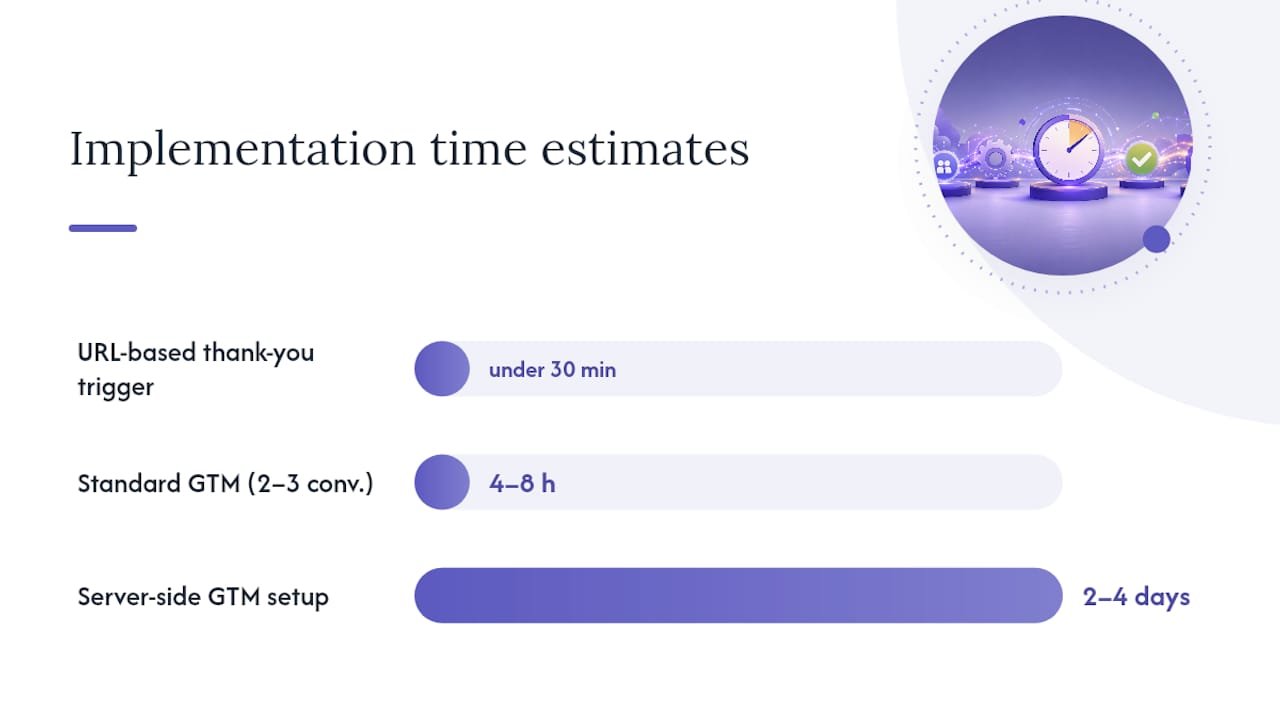
Some setups are genuinely straightforward — a URL-based trigger on a simple thank-you page takes under 30 minutes. Others require development resources, careful data architecture, and ongoing maintenance. Here’s how to tell the difference.
Consider outsourcing when:
- You don’t have access to edit your site’s
<head>or install a GTM container - Your e-commerce platform has a custom checkout that requires server-side event mapping
- You’re implementing Enhanced Conversions with manual field mapping across multiple form types
- You’re planning a server-side GTM setup with a custom server container
- You’re managing more than five conversion actions across multiple campaigns and the data is inconsistent
Sample tech spec to hand to a developer or agency:
- [ ] Install sitewide Google tag (gtag.js) in
<head>of all pages, OR confirm GTM container is live - [ ] Add Conversion Linker tag in GTM, triggered on All Pages
- [ ] Create dataLayer push for each conversion event: include
event,value,currency,transaction_id - [ ] Configure Google Ads Conversion Tracking tag in GTM for each conversion action (Conversion ID + Label)
- [ ] Implement Enhanced Conversions: map
emailandphone_numberfields via GTM or code - [ ] If server-side: provision server container, configure GA4 client, set up Ads Conversion Tracking server tag
- [ ] Verify all tags in GTM Preview and Tag Assistant before publishing
- [ ] Document all event names, variable names, and Conversion IDs in a shared tracking spec
Scope and timing guidance for small business projects:
A standard GTM setup with two to three conversion actions, a Conversion Linker, and basic Enhanced Conversions typically takes 4–8 hours for an experienced implementer. Add server-side GTM and the scope grows to 2–4 days depending on platform complexity. For ongoing campaign management and tracking maintenance, a monthly retainer makes more sense than one-off project fees.
Pro Tip: When handing off to an agency, never share your Google Ads login directly. Grant access through the Google Ads Manager Account system or use the “Access and security” settings to add the agency’s email with the minimum role needed. Document every account ID, container ID, and conversion action ID in a shared doc before work starts. This protects you if the relationship ends and makes audits significantly faster.
The honest case for getting conversion tracking right the first time
There’s a version of conversion tracking setup that most guides skip: the one where everything technically fires, but the data is still wrong.
URL-based tracking is fast. It’s also the most common source of inflated conversion counts I see when auditing accounts. A confirmation page that’s bookmarkable, shareable, or reachable without completing the form will count every visit as a conversion. Automated bidding then optimizes toward the wrong signal, CPCs climb, and lead quality drops — all while the dashboard shows green.
The more durable approach is event-based tracking tied to a specific interaction: a form_submission event that fires only when the form POST succeeds, or a purchase event that fires only when the order is confirmed server-side. It takes more setup. It’s also the only version that gives you data you can actually trust for bidding decisions.
Enhanced Conversions and server-side GTM aren’t complexity for its own sake. They exist because the tracking environment has changed. Browser restrictions, ad blockers, and the decline of third-party cookies mean that a standard client-side pixel misses a meaningful share of real conversions. The businesses that invest in a privacy-first setup now will have cleaner attribution data as those restrictions tighten — and their automated bidding will reflect it.
The spec in the outsourcing section above isn’t just a handoff document. It’s a quality standard. If an agency can’t deliver every item on that list, the implementation isn’t complete. Accurate conversion rate data starts with accurate conversion tracking — and that starts with getting the foundation right before you spend a dollar on ads.
Cosmicdigitalstudios handles your conversion tracking so your ad spend isn’t flying blind
Your Google Ads budget deserves better than a broken pixel and a dashboard full of inflated numbers. Cosmicdigitalstudios builds and audits conversion tracking setups for coaches, consultants, and local service businesses — from a clean GTM container and sitewide Google tag through to Enhanced Conversions and server-side implementation when your volume demands it.
Getting the tracking right is the foundation of every campaign we build. When you work with Cosmicdigitalstudios, you get a complete, verified setup — not a tag dropped in and forgotten.
What’s included in a conversion tracking build or audit:
- Full audit report: every tag, trigger, and conversion action reviewed against your business goals
- GTM container build: Conversion Linker, Google tag config, and event-based triggers for each conversion action
- Enhanced Conversions deployment: manual GTM field mapping for email and phone, tested and verified
- Dynamic value mapping: dataLayer variables for purchase value, currency, and transaction ID
- Testing and verification: GTM Preview, Tag Assistant, and Google Ads status confirmation before handoff
- Documented tracking spec: every event name, variable, and Conversion ID recorded for your team
Ready to stop guessing whether your conversions are recording correctly? Book a discovery call with Cosmicdigitalstudios and we’ll audit your current setup and show you exactly what needs fixing.
Sources
The resources below are the primary references for implementing and troubleshooting Google Ads conversion tracking:
- Set up your web conversions – Google Ads Help